Get the most out of Cadence
Your gym owns more than a check-in kiosk. This is the two-minute tour of everything working for you now, including the parts most gyms don't find on day one.
Screens below show Riverbend Gymnastics, our demo gym.
The check-in station
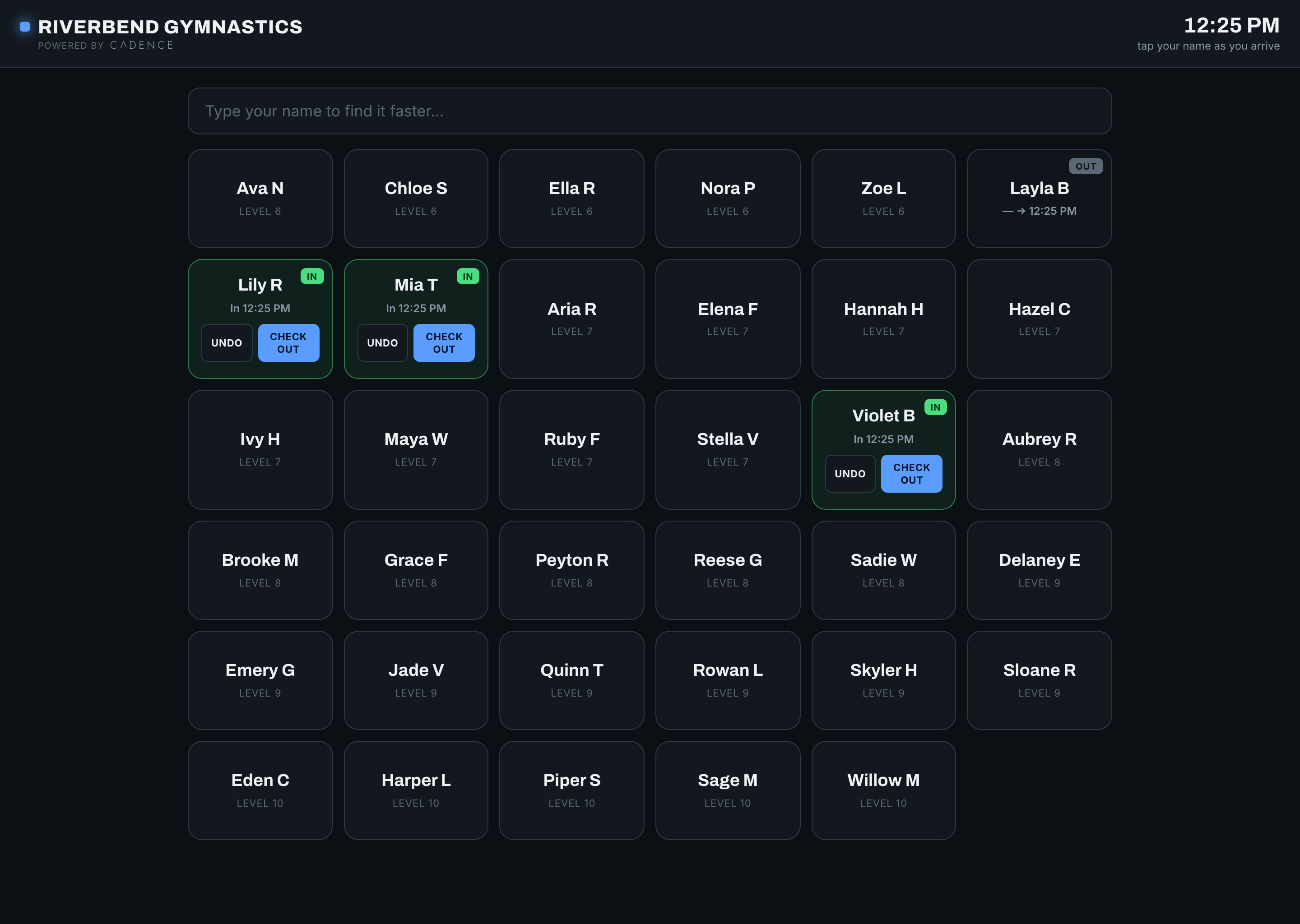
Your athletes run attendance themselves. They tap their name on the iPad walking in and tap out walking away. Cadence knows each group's schedule, so late arrivals are flagged automatically, an accidental tap has an Undo, and if two sessions overlap it simply asks which one they're here for.
Today: your live floor
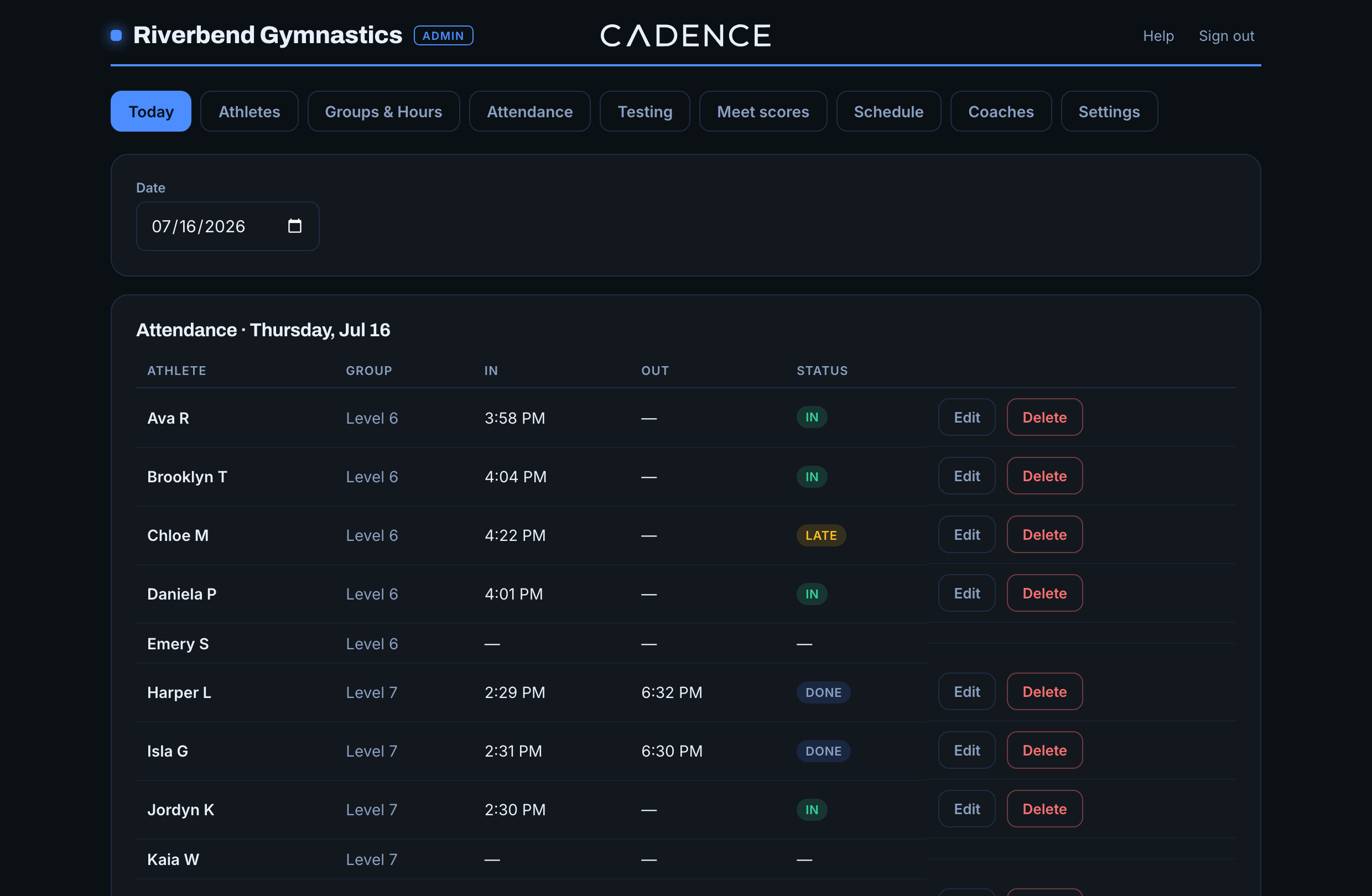
Who's in the gym right now, who came late, who never showed. Every tap appears here the moment it happens, and any mistake is an Edit button away. Forgot to check someone out? Fix it in five seconds.
Attendance that writes itself
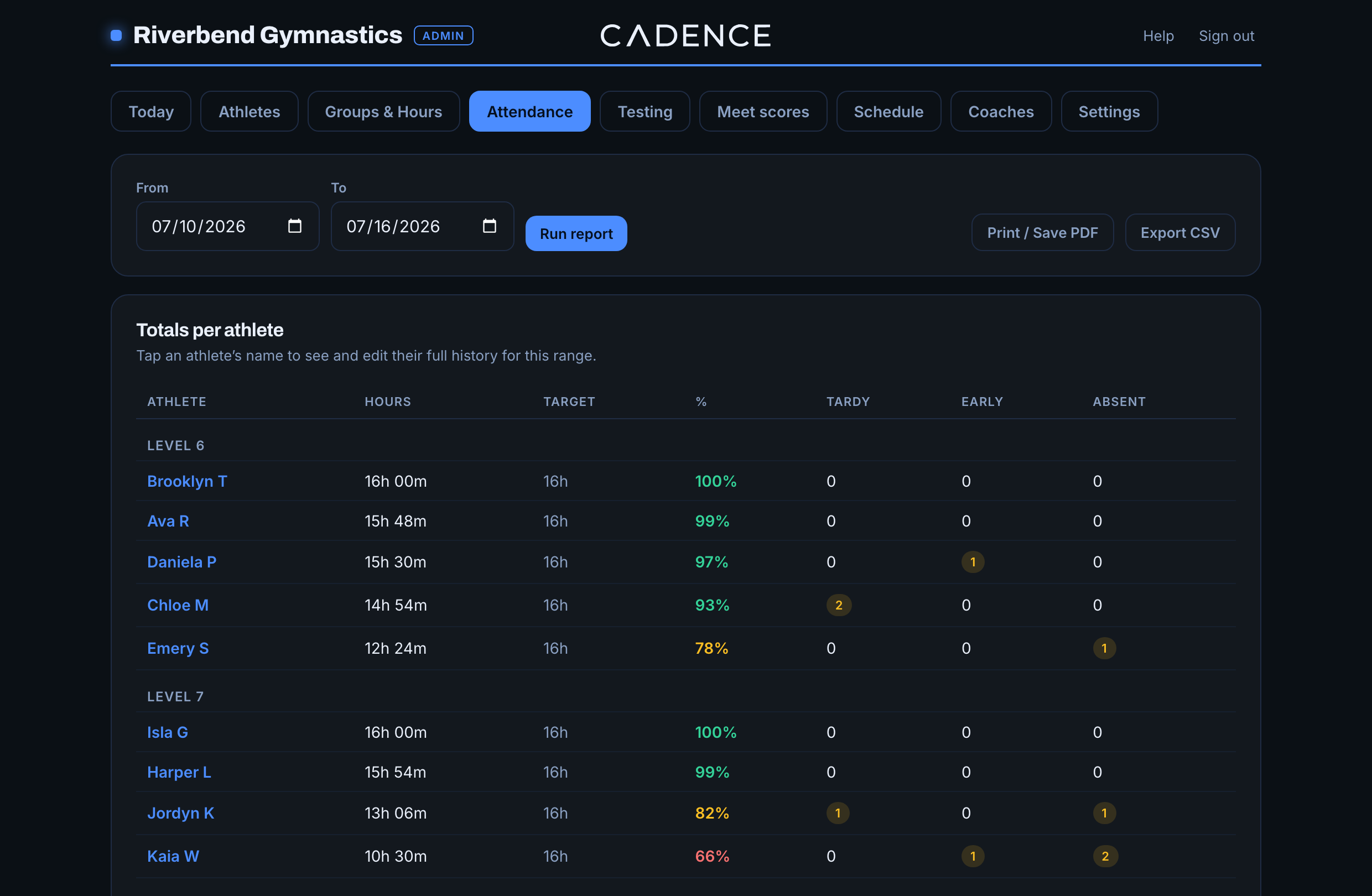
Pick a date range and the report is simply done: hours attended against each athlete's target, a color-coded percentage, tardies, early departures, and absences, grouped by level with your best attendance on top. Print it, save it as a PDF, or export a CSV for the office.
A schedule that handles real life
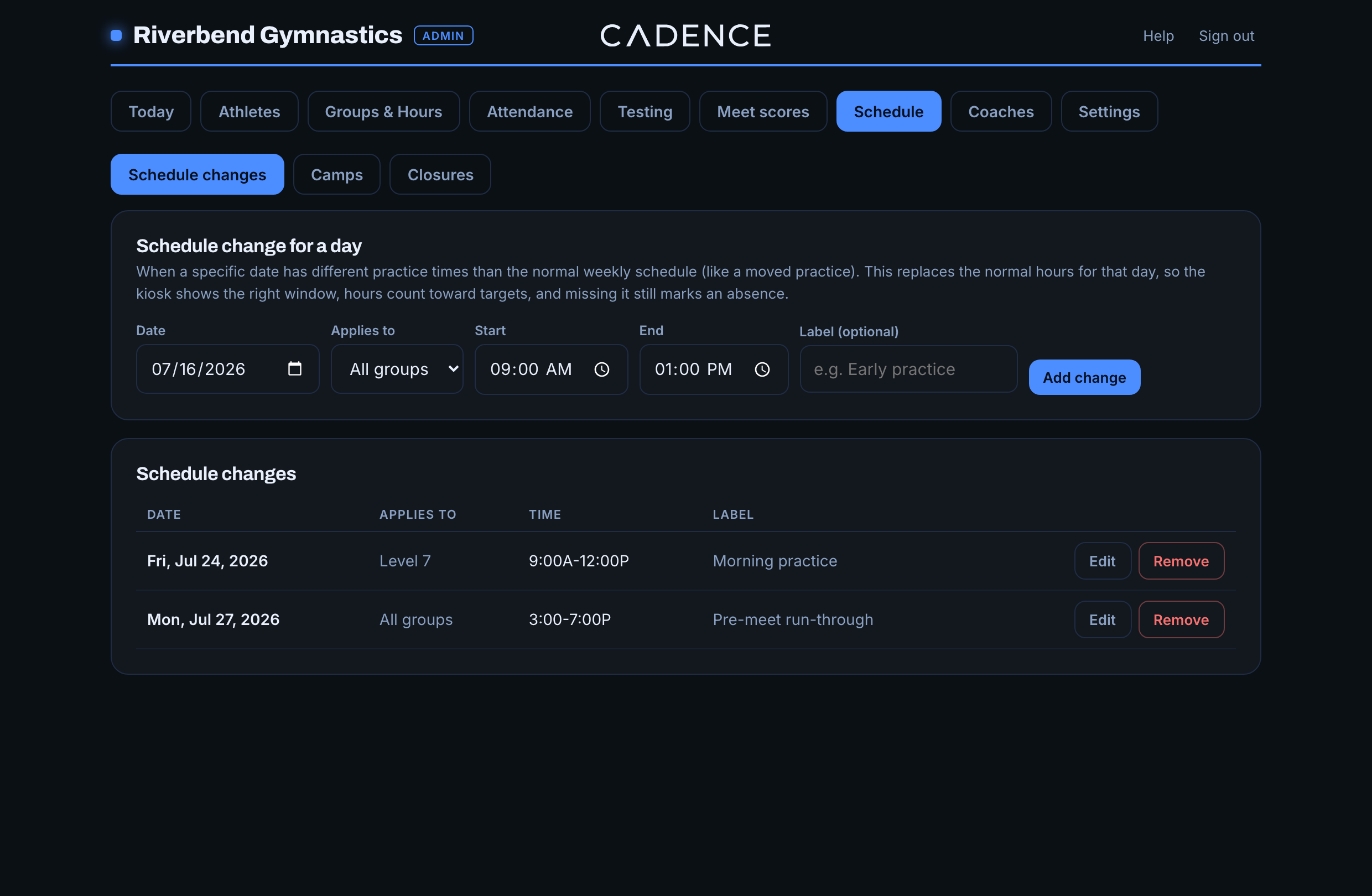
Three kinds of exceptions, three clean tabs. Schedule changes replace a day's normal hours, so the kiosk and reports follow the new times. Camps are optional sessions: athletes who come earn their hours, and nobody who skips is marked absent. Closures shut the day down entirely.
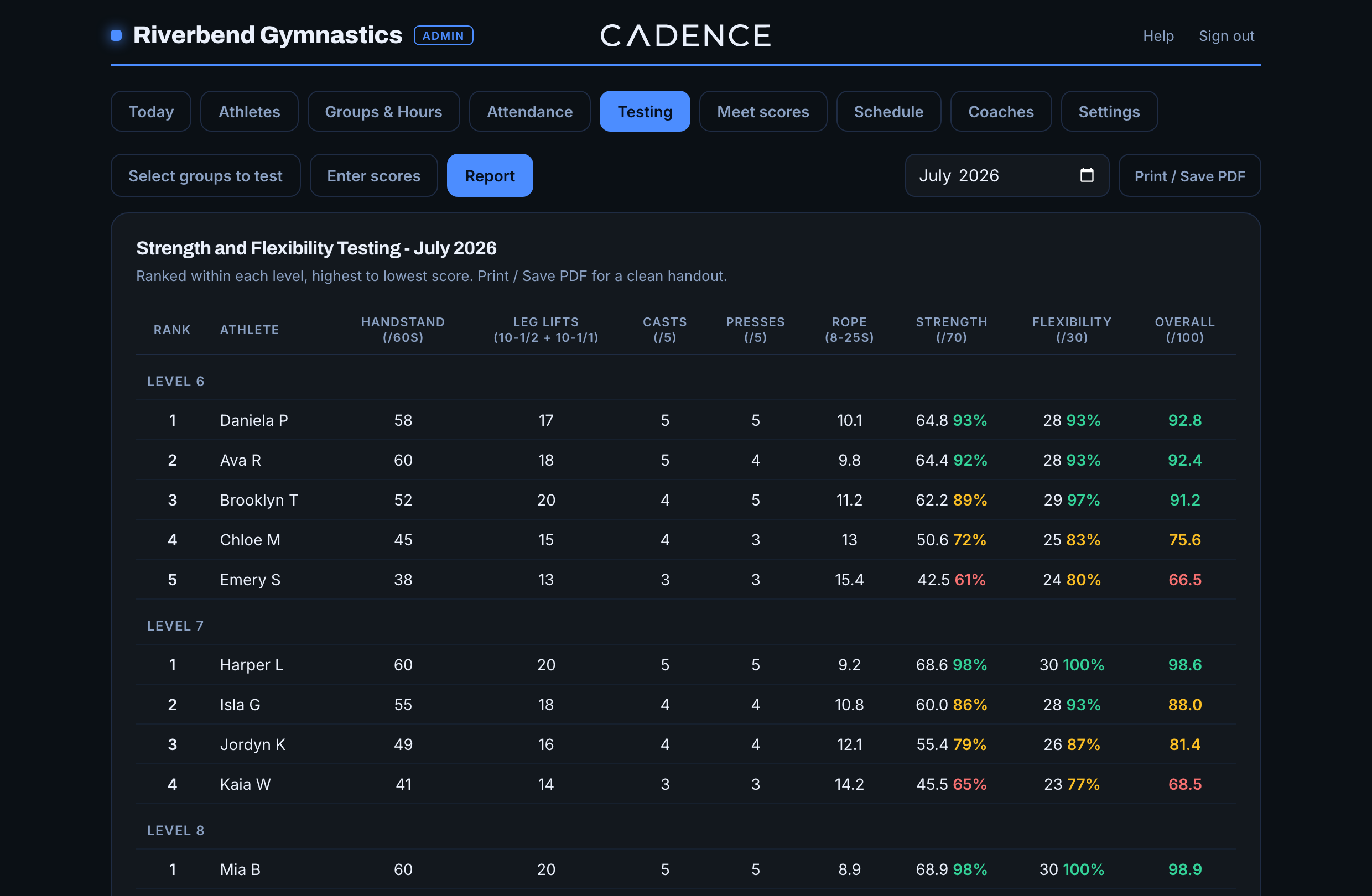
Strength and Flex testing
Enter raw numbers once a month: handstand hold, leg lifts, casts, presses, rope, five flexibility positions. Cadence scores every athlete out of 100 and ranks them within their level, highest to lowest, on a report you can hand to parents. Every month is saved forever, so progress is one month-picker away.
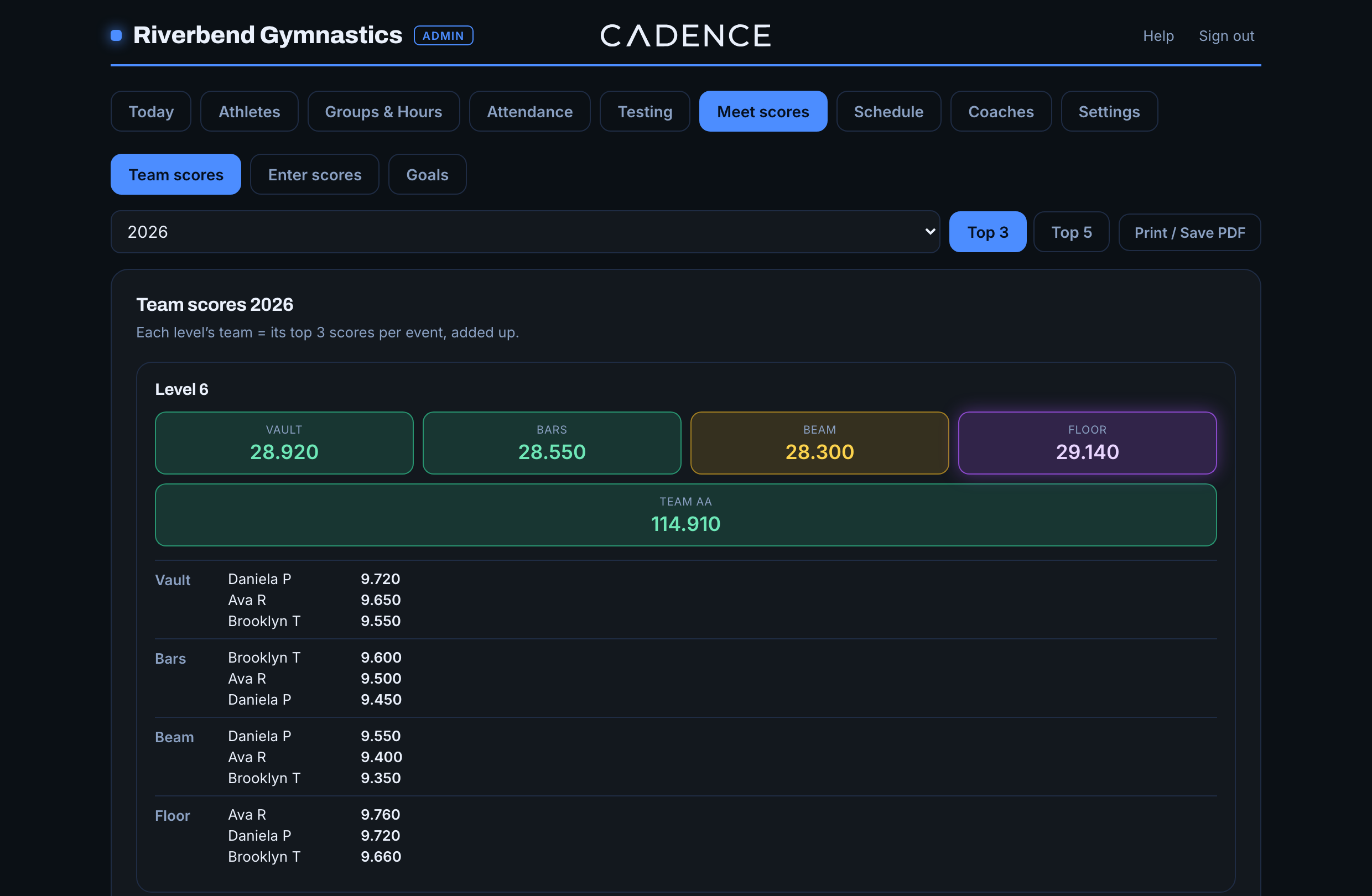
Meet scores and team scores
Enter each athlete's scores once and the season builds itself. Team scores add up your top 3 or top 5 per event, Team AA combines all four, and every tile is colored against your gym's own goals: yellow, green, and a glow for exceptional. Set those thresholds yourself in the Goals tab.
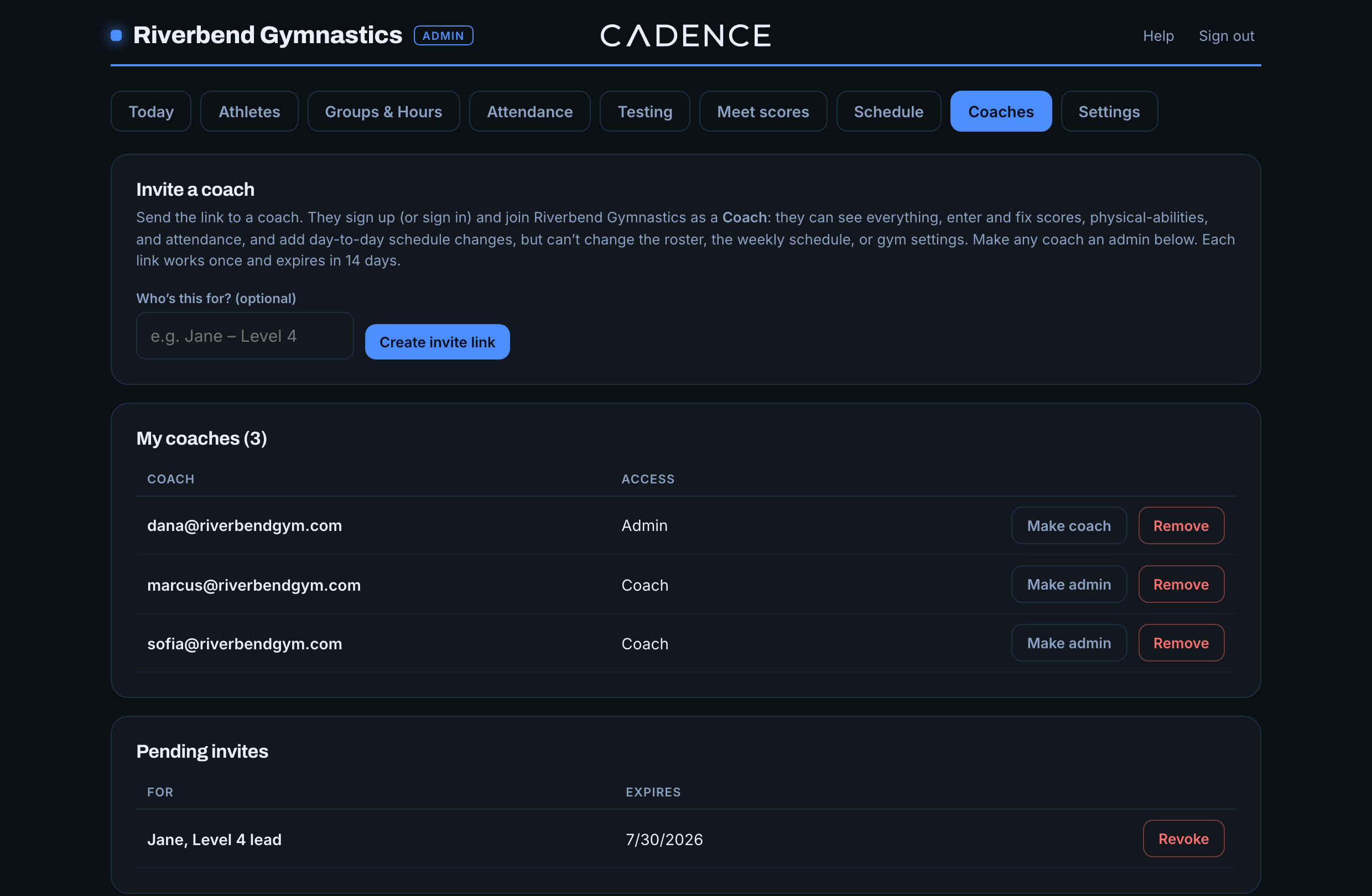
Your coaching staff, with the right keys
Invite coaches from the Coaches tab with a link that works once and expires in 14 days. Coaches get the day-to-day: attendance fixes, meet scores, testing, one-day schedule changes. The structure of your gym, the roster, weekly schedule, settings, and billing, stays admin-only. Promote a coach to Admin anytime.
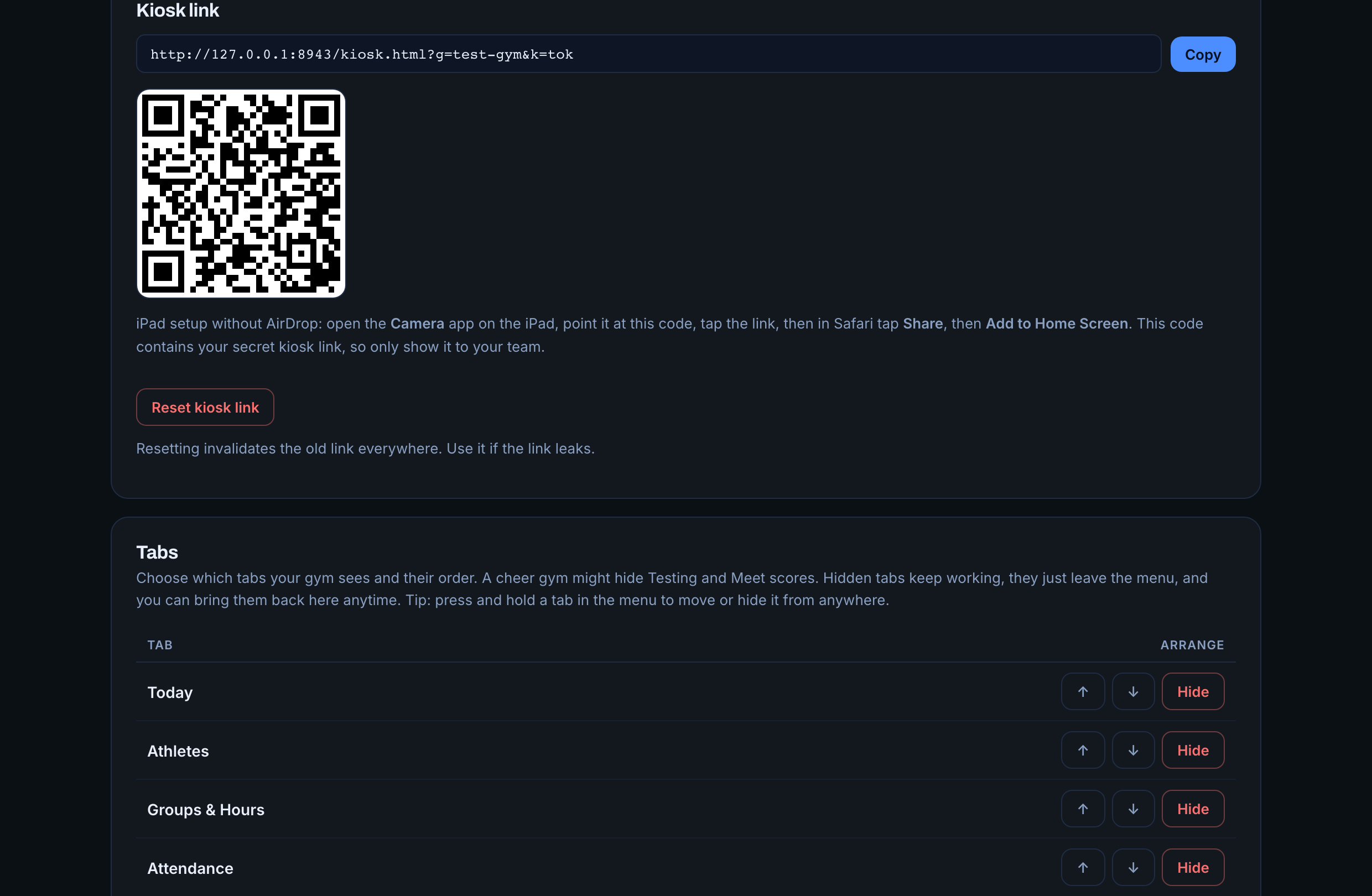
Make it yours
Press and hold any tab to move it or hide it, or manage the whole layout from Settings. A cheer program can hide Testing and Meet scores entirely. Hidden tabs keep working behind the scenes and come back with one click. And the kiosk QR code lives in Settings whenever you add another iPad.
A direct line
The Help button inside Cadence goes straight to the founder, as does support@ltsathletics.com. You'll hear back within 24 hours, usually much faster.
That's your gym now.
Open cadence.ltsathletics.com, put the iPad by the door, and let the clipboard retire.